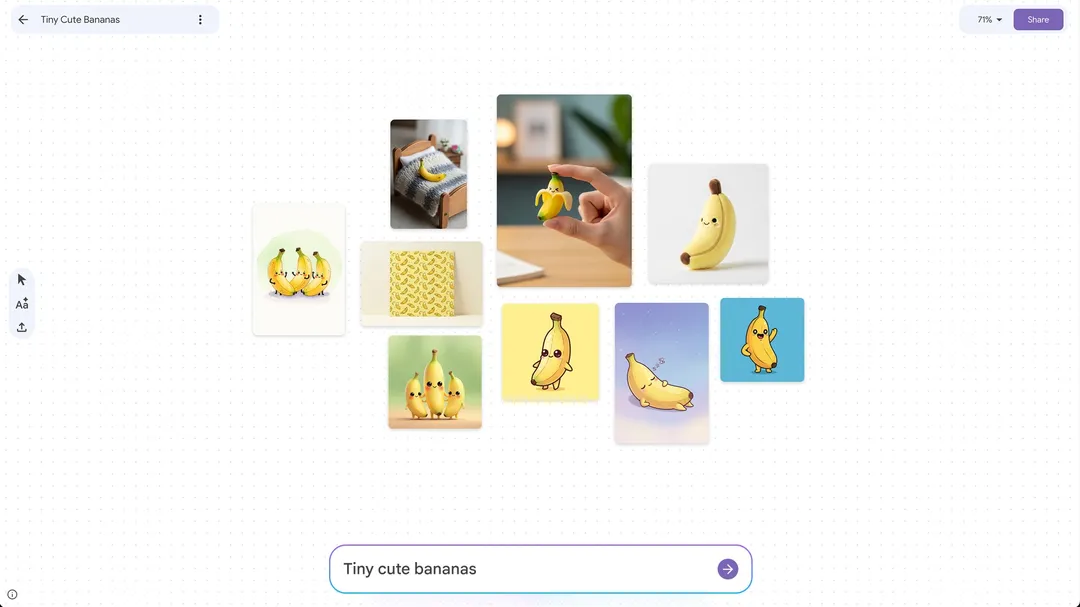
Google Mixboard
Mixboard Overview
Google Mixboard (mixboard.google.com) is a free AI-powered concepting board from Google Labs - a smart moodboard that helps you "explore, expand, and refine your ideas". Launched as a US public beta in September 2025, it turns a simple text prompt into a visual board of images, color palettes, and text on an open canvas, powered by the Gemini 2.5 Flash image model and edited with the Nano Banana image-editing model. It is ideal for home decor, event themes, product concepts, DIY projects, wardrobe planning, and storyboarding - no design skills needed.
- Start from a Prompt or Template: Describe an idea ("cozy reading nook with pastel tones") or pick from pre-populated board templates to jumpstart a project.
- Bring Your Own Images: Upload photos, brand assets, sketches, or even PDFs (plus a built-in selfie camera) and blend them with AI-generated visuals.
- Natural Language Editing: Edit boards with plain text - "make the background darker", "blend these two concepts", "make it more minimal" - powered by the Nano Banana image-editing model.
- One-Click Variations: "Regenerate" produces fresh takes; "More like this" generates similar variations to compare side by side.
- Five Core Image Buttons: Regenerate, More like this, Remove background (clean cutouts for compositing), Duplicate, and Download.
- Doodle Editing: Mark an area directly on an image, describe the change, and watch it appear - for controlled edits to images and presentations.
- Context-Aware Text: Generate titles, captions, and short descriptions based on the images on your board - great for briefs and client presentations.
- Presentations: Turn a board into a polished presentation powered by Nano Banana Pro (Gemini Image), combining board context, format, focus, and visual style.
- Multiple Boards per Project: Use separate boards for brainstorming, odds and ends, and your final vision on one large canvas.
- Free and Integrates with Google AI: No subscription in the public beta, with workflows that connect to Gemini, NotebookLM, and other Google Labs experiments.
How to Get the Best Results
Mixboard is an ideation tool - its strength is fast visual exploration, not final production design. Users get the best results by prompting specifically, iterating in small steps, and mixing AI-generated visuals with their own reference images.
- Be specific in prompts: The more precise the input, the closer the output. "Cozy reading nook with pastel tones" or "Japanese-style living room, bright natural light, oak furniture, houseplants, neutral colors" beats vague one-liners.
- Use style and mood keywords: Words like minimalist, playful, retro, editorial, cinematic, warm palette, or rustic steer results away from generic AI looks.
- Start broad, then refine in small steps: Don't cram 10 details into one prompt. Iterate with short edits - "add more contrast" to "show bolder fonts" to "make it darker" - keeping each result clean.
- Upload seed images for a specific style: Client photos, logo drafts, or inspiration shots guide the AI: upload a chair photo and Mixboard generates more chairs in that style; add placement instructions like "position the sofa by the window" to integrate real items into AI scenes.
- Master the five buttons: Use Regenerate for fresh takes, More like this for variations, Remove background for clean cutouts before compositing, Duplicate to keep multiple copies for layout work, and Download to save finished images.
- Combine and blend images: Select multiple visuals and prompt merges - "combine the texture from image 1 with the color scheme of image 3" - to create composites that no single generation could produce.
- Add text only after visuals feel stable: Generate captions and labels once the imagery is settled to avoid mismatched text.
- Doodle for controlled edits: Mark the exact area on an image and describe the change for surgical edits instead of broad regenerations.
- Compare multiple directions: Keep several boards per project (brainstorming, odds and ends, final vision) and save a "wild board" with a risky prompt - unexpected directions often spark the best ideas.
- Pair with execution tools: Use Mixboard to lock the concept, then polish the final design in Figma, Canva, or Adobe Firefly - Mixboard is the first step of a workflow, not the last.
Pros (Good Points)
- Free and fast: From prompt to visual concept board in seconds, with no subscription or design skills required.
- Powerful editing under the hood: Nano Banana handles complex edits, image blending, and on-image text with surprising accuracy.
- Blends real and imagined: Upload personal assets, client photos, and PDFs and combine them naturally with AI-generated visuals.
- Beyond static boards: Regenerate, more-like-this, doodle editing, contextual text, and Nano Banana Pro presentations cover the whole ideation flow.
- Useful across fields: Interior design, event and wedding planning, product concepts, DIY, wardrobe styling, and photography/storyboard mood boards.
Cons (Bad Points)
- US-only public beta: Access is currently limited to the U.S. - users elsewhere may need a U.S. Google account or VPN to try it.
- Experimental quality: Image generation can be inconsistent or unexpected, and some portraits may not be recognized accurately.
- Generic-look risk: AI-generated visuals can resemble existing styles; fully unique artwork still needs human creativity.
- Ideation, not production: Lacks advanced design and export tools - finished designs still need Figma, Canva, or similar tools.
- Beta volatility: An early Labs experiment, so features and behavior can change drastically.